
Translations
The Translations tab is where you add translations of speech, Quran references and quotations to your video in one or several languages.
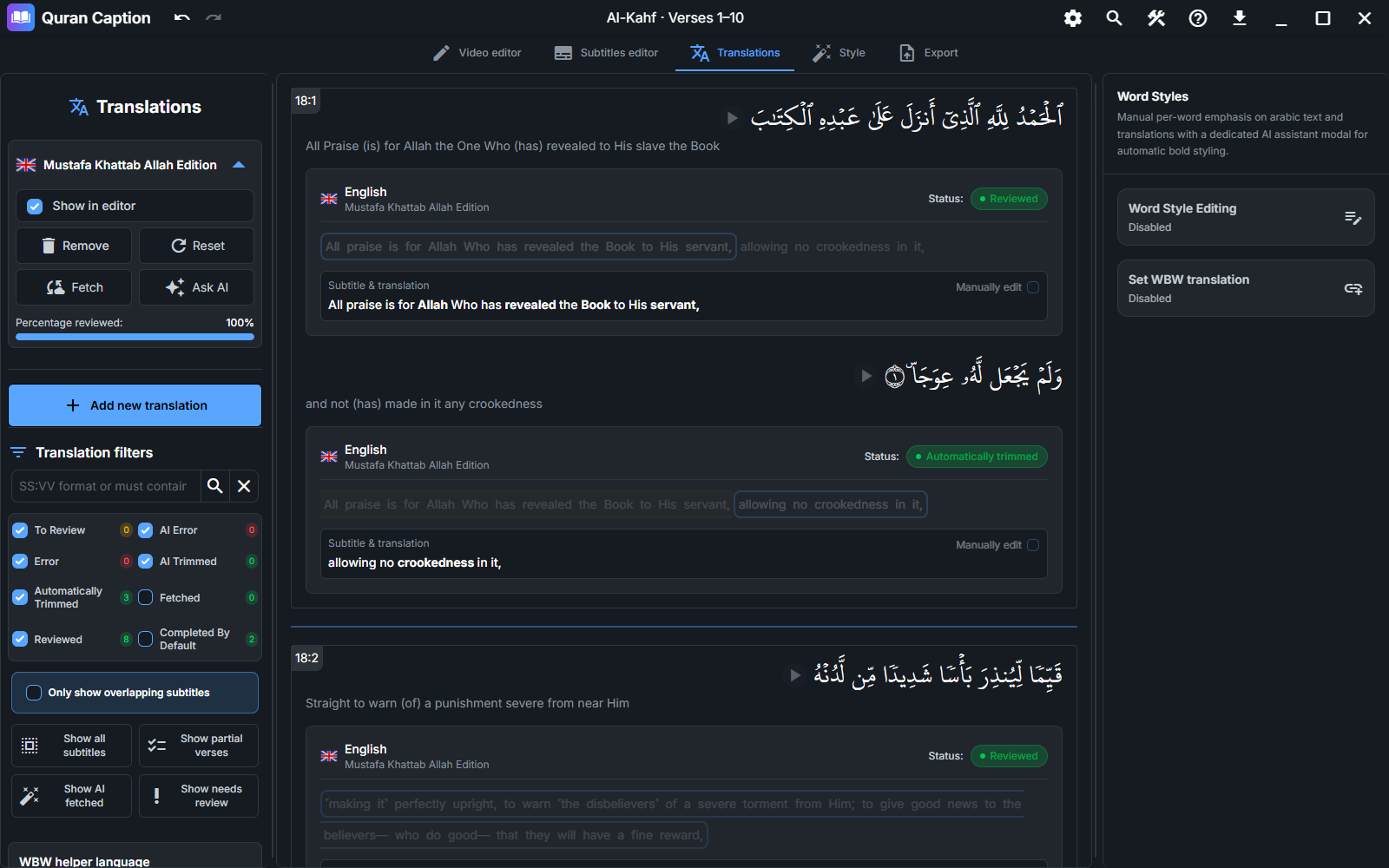
Adding a translation
Create your subtitles first, then add the languages you want to use in the project.
- Choose a target language for your transcript.
- Generate translations of speech and quotations using your configured text AI provider, or edit them manually.
- For Quran references, select a Quran translation edition and review its wording against the referenced passage.
Quran translation sources include Quran API and Quran.com. Text AI translations require your own provider key; standard Quran translation downloads do not.
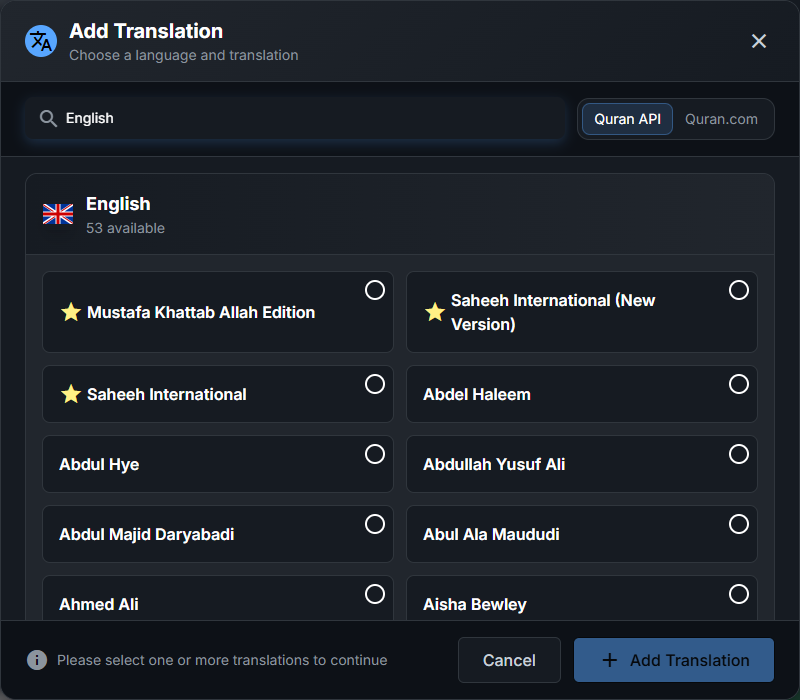
Translation statuses
Each translated passage has a status, shown as a colored badge in the filter panel:
- To review (yellow) — the translation needs attention, for example because the subtitle contains only part of a verse or an AI review flagged a possible mismatch.
- AI error / Error (red) — processing failed; check the passage before retrying.
- AI trimmed / Automatically trimmed / Reviewed / Completed by default — completed workflow states. Reviewed records a manual edit or selection; automatic completion does not guarantee that the selected text matches the Arabic meaning.
Fetched identifies passages updated with the Fetch action. Use the quick filters to show only what needs attention: Show partial verses, Show AI fetched, or Show needs review.
Partial verses
When a subtitle contains only part of a verse, the full translation does not match. Select the words in the translation that correspond to the referenced Arabic — Minbar Caption trims the translation automatically and marks the passage as reviewed.
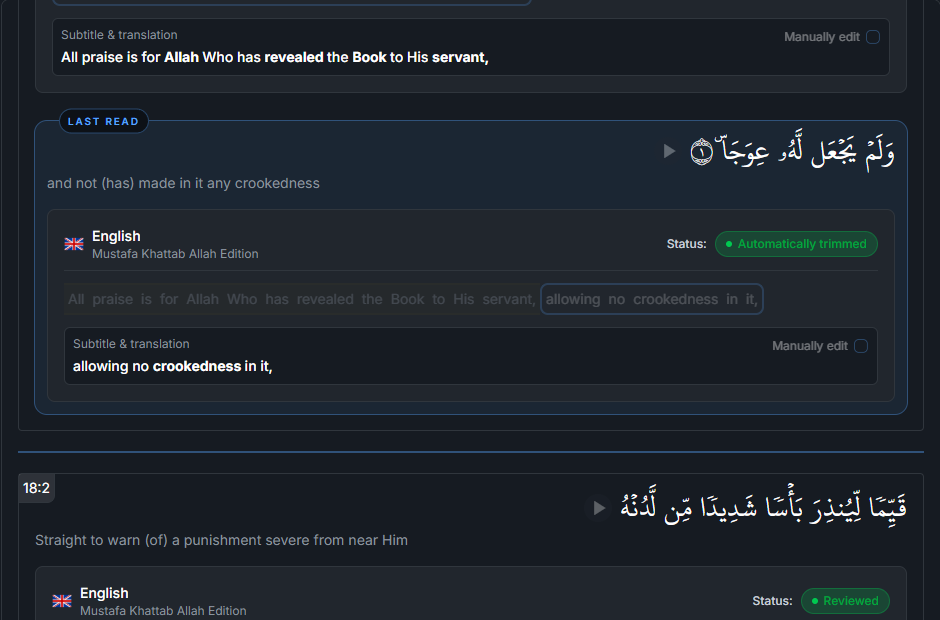
Editing translations
Enable Manually edit to change a passage’s displayed text. The edition menu lets you reset or remove the whole translation; removing it affects every subtitle using that edition.
Word styles
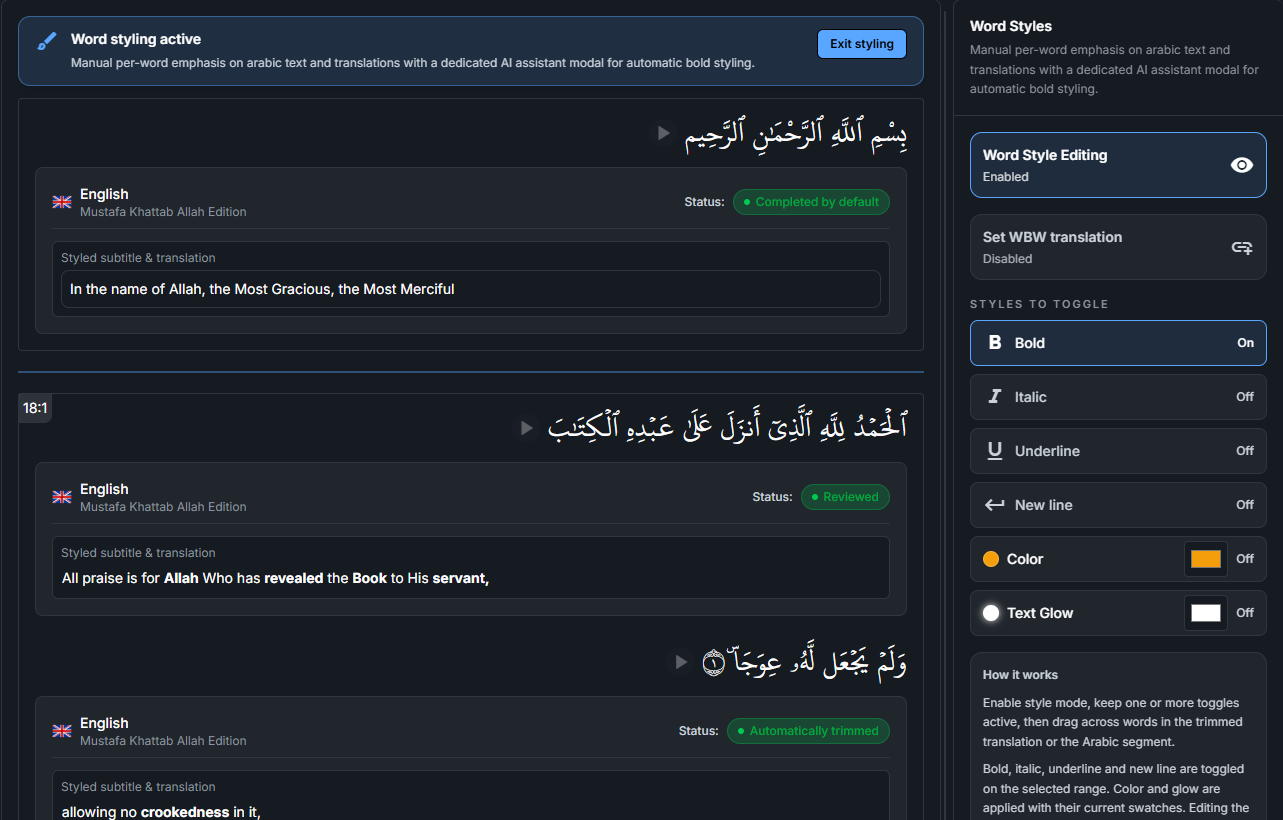
Word styles let you emphasize individual words — in the translation or in the source text — directly from the Translations editor. The Word Styles panel has two exclusive modes.
Word Style Editing
To highlight words manually:
- Enable Word Style Editing.
- Turn on one or more styles: bold, italic, underline, new line, color, or glow.
- Drag across the words you want to style — in the trimmed translation or in the source segment.
Bold, italic, underline, and new line are toggled on the selected range. Color and glow are applied with their current swatch. Editing the translation text afterwards clears the translation word styles and word-by-word mappings. Use Reset all segment styles to clear manual word emphasis.
You can also open the AI Bold Assistant to let your AI provider highlight key words automatically.
Set WBW translation
This mode links translation words to specific source words. Select a source word, then drag across the trimmed translation range that matches it. The AI WBW Translation Assistant can map these ranges for you automatically.
AI translation assistants
Minbar Caption includes several AI tools that run on your configured AI provider (see Settings → API Keys → AI Key):
- AI translation - generates editable translations of speech and quotations.
- AI trimming — trims translations to match partial verses.
- Review translations with AI — checks the chosen translations for possible meaning, boundary, and overlap errors, then marks flagged passages as To review for you to inspect.
- AI bold — highlights key words automatically.
- AI WBW translation — maps translation ranges to each source word.
What’s next?
With translations ready, customize how everything looks in the Style editor.