
Getting started
This guide walks you through creating your first project and understanding the editor. If you have not installed Minbar Caption yet, start with Download & Installation.
Creating a project
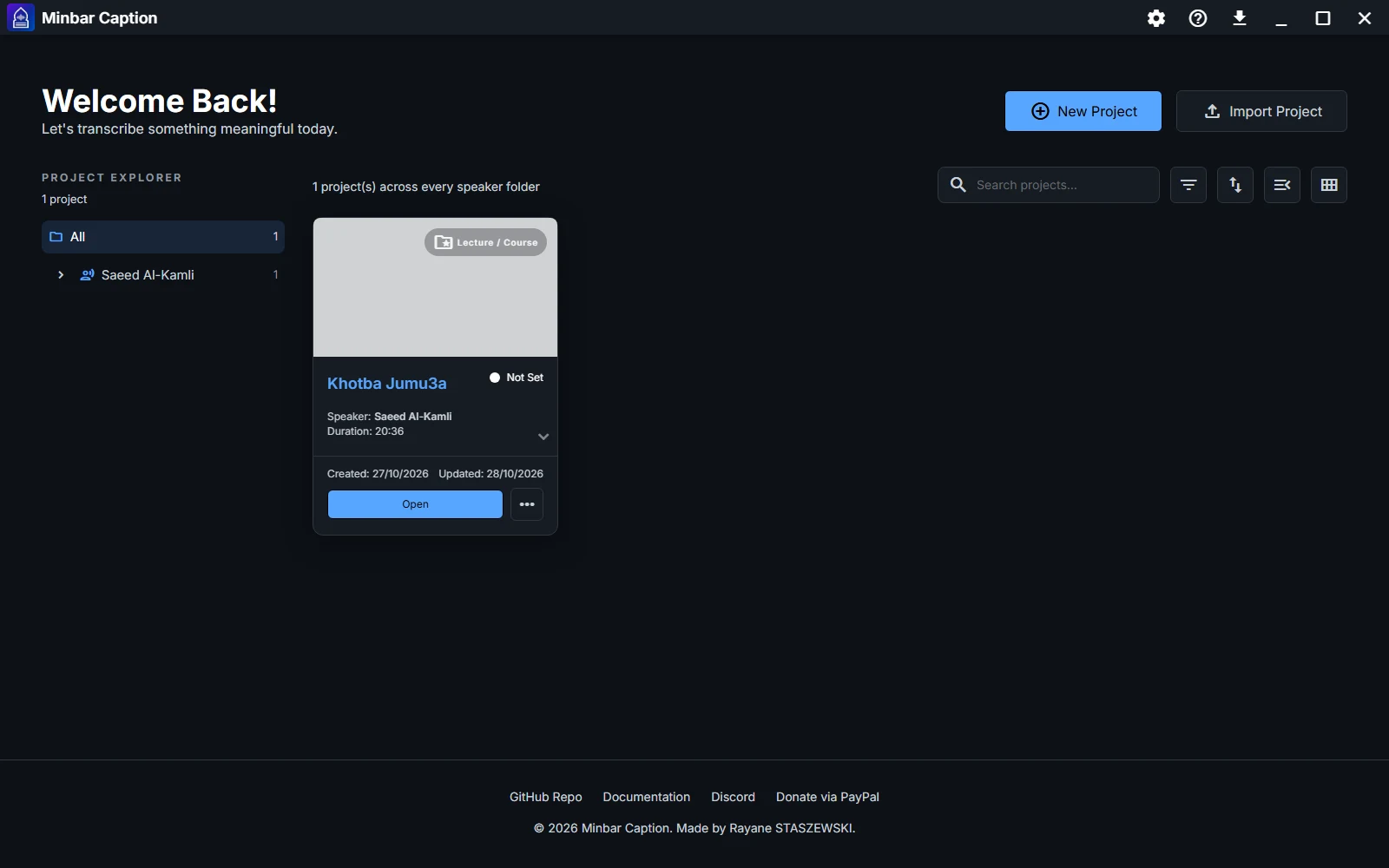
When you open Minbar Caption, the home screen lists your projects. Click New Project to create one.
In the Create New Project dialog, fill in:
- Project Name — a descriptive name for your video project.
- Speaker — the name of the speaker, the person speaking in the recording.
- Video Quality & Orientation — landscape (16:9), portrait (9:16), square (1:1), or custom dimensions, and a resolution from 720p to 4K.
- Type — a category that organizes your projects (lecture, khutbah, podcast, course, poetry or nasheed). Categories are configurable in Settings.
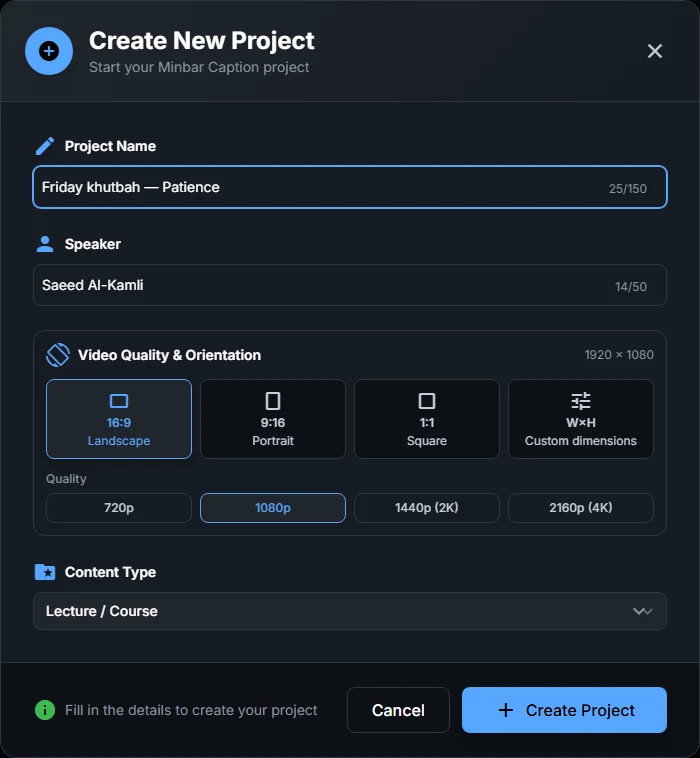
Click Create Project to open it in the editor.
The home screen
The home screen is where all your projects live. The Project Explorer sidebar groups them into folders by speaker, project type, and year, and the main area shows project cards with their duration and captioning progress. You can:
- Search projects by name.
- Filter by status, show projects, or choose a type in the explorer.
- Sort by last updated, creation date, or duration.
- Open, duplicate, export, or delete a project from its card menu.
- Import a project file, including a
.qcpackage.
Understanding the editor
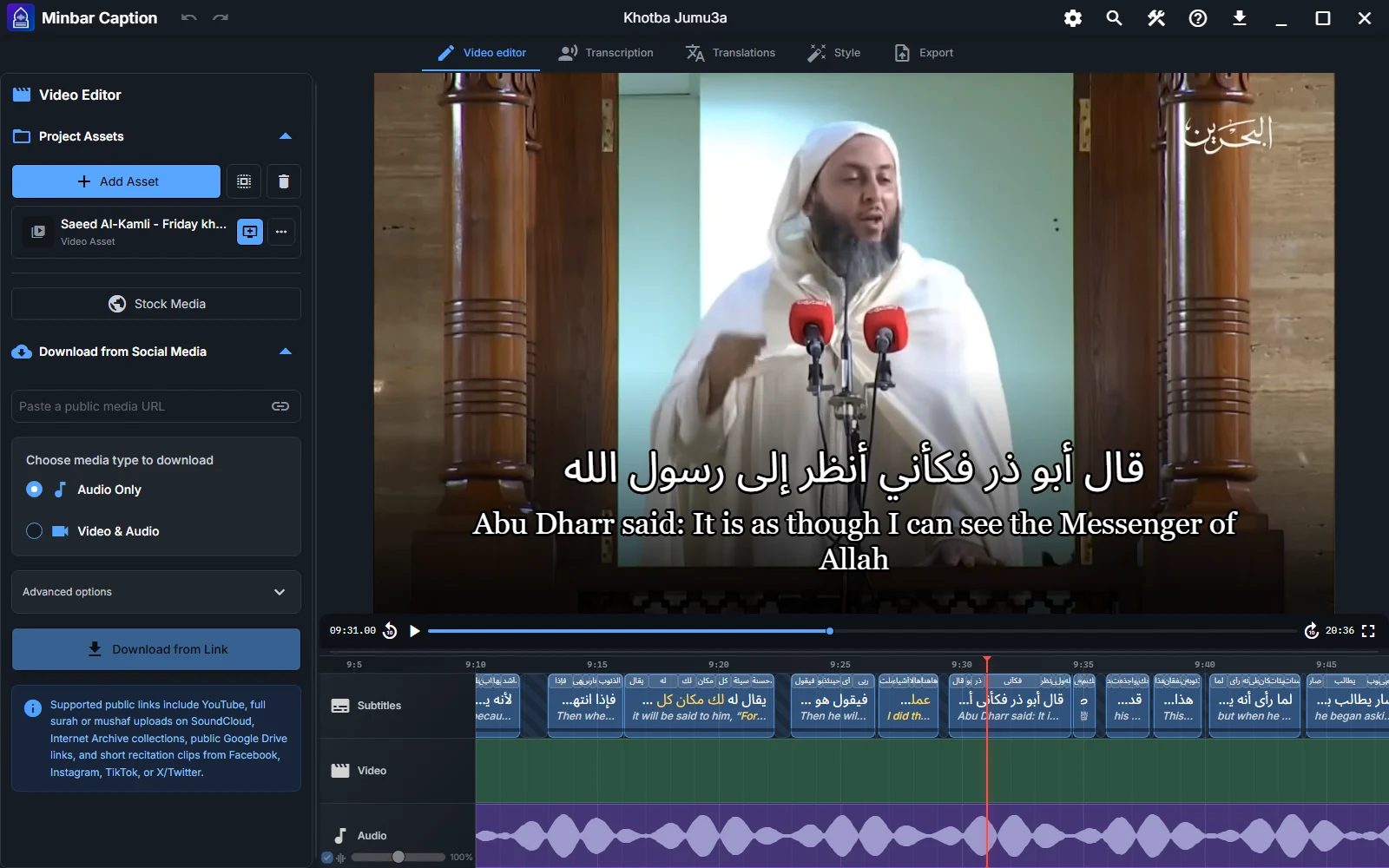
The editor is organized into five tabs, plus the video preview and the timeline:
- Video editor — import and manage your media and build the timeline.
- Subtitles editor — create and align the transcript subtitles with the recording.
- Translations — add and refine translations.
- Style — choose a preset and customize the visual style.
- Export — configure and launch your exports.
The “Your first video” guide
On your first project, Minbar Caption shows a guided walkthrough — Your first video — that steps you through the whole flow: add the recording, create the subtitles, add a translation, choose a style, and export. You can hide it for the current project and choose whether to show it again for future projects.
Autosave & project management
Projects are saved automatically and stored locally. Imported media still depends on its files on disk: moving or deleting those files can make an asset unavailable. Use a project package when you need to transfer a project with its media.
Use the undo and redo buttons in the title bar to reverse project edits. The shortcuts are Ctrl + Z and Ctrl + Shift + Z (Cmd on macOS); Ctrl + Y also redoes an edit.
What’s next?
Start with Media & Assets to import your first recording, or jump to Subtitles to learn how captions are created.