
Transcription
Automatic transcription converts a timeline audio clip into editable subtitles with word timestamps. Open it from the Subtitles editor, choose Groq or ElevenLabs, and use your own provider API key.
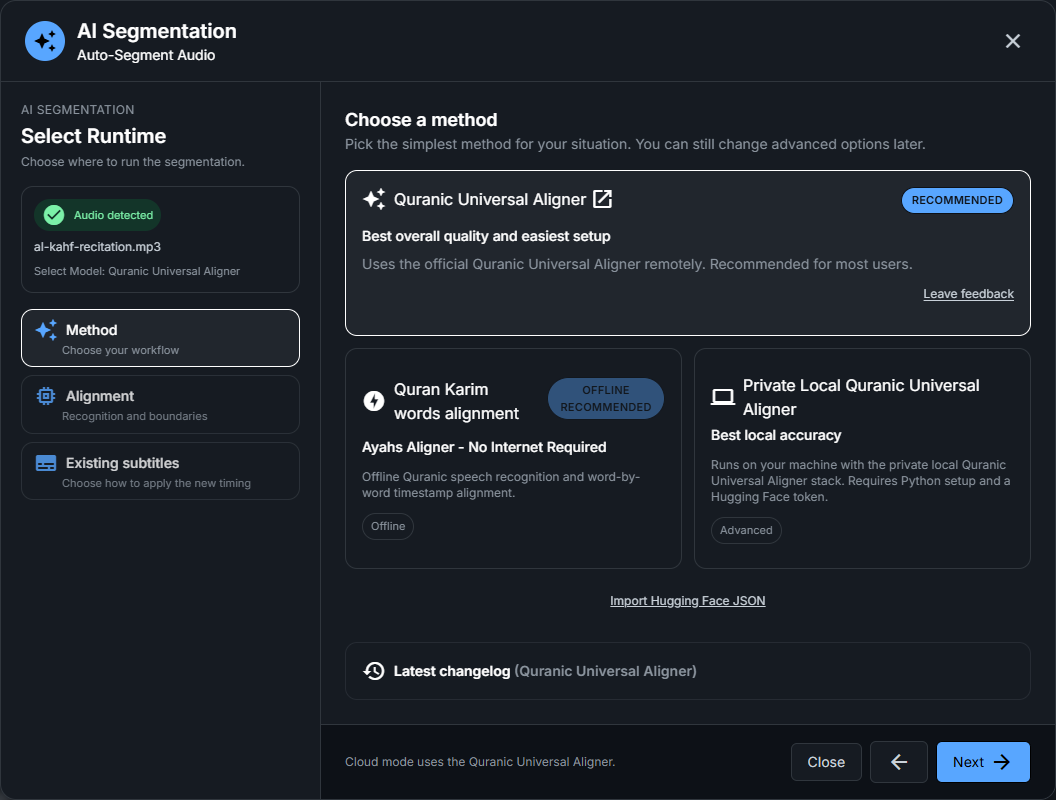
Choosing a provider
Add the recording to the audio track first. Minbar Caption offers two speech providers:
- Groq - create a key in Groq Console and add it in Settings > Transcription keys.
- ElevenLabs - create a key with Speech to Text permission and add it to the same settings panel.
Audio is sent to your selected provider. An internet connection is required and your provider's pricing and quotas apply. Text AI uses separate settings for correction, rearrangement, reference detection and translations.
The transcription steps
- Select the timeline audio clip and the transcription provider.
- Choose a model, language and subtitle preferences.
- Start transcription and wait for the subtitles to be added.
- Listen to the recording and review text and timing before translating or exporting.
If the timeline already contains subtitles, the app asks before replacing them. A failed transcription keeps the existing subtitles, and a successful replacement can be undone.
Options
- Language - leave empty for automatic detection or enter a code such as ar, fr or en.
- Subtitle preferences - choose word and duration limits to keep captions readable.
- Padding - start earlier or end later using available silence. Consecutive subtitles keep their shared boundary.
- Text AI - optionally rearrange subtitles by meaning, then review the proposed boundaries before applying them.
Reviewing the result
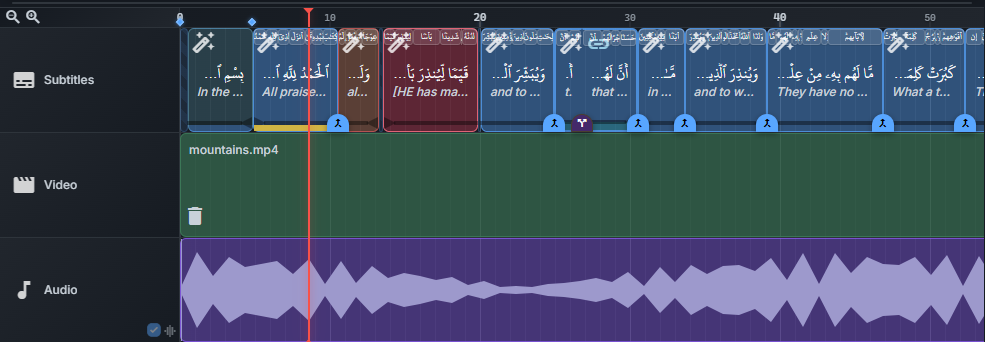
After segmentation, some subtitles may need your attention. They are colored directly in the timeline:
- Yellow — low confidence: the AI is unsure of the timing.
- Orange / red — coverage issue: some spoken words were not matched.
- Blue — missing word-by-word timestamps.
- Rose — marked for length review using the chosen word-count range.
These colors mark subtitles that may be wrong — a mistimed word, missing text, or a caption that is hard to read. Review each flagged segment: listen to that part of the recording, check that the text and timing match, and mark it as reviewed. Once reviewed, the colored background shrinks to a thin band at the bottom of the clip.
Use Segments to review in the Subtitles editor to jump between flagged subtitles. The same low-confidence and missing-word subtitles are also called out before you export.
What’s next?
Once the subtitles are correct, add translations in the Translations tab.