
Tools
The Tools menu (the wrench icon in the title bar) groups utilities for adjusting your media and subtitles.
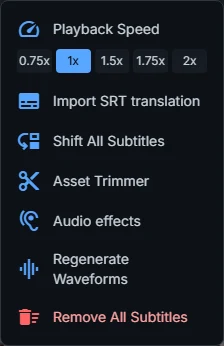
Shift All Subtitles
Move every subtitle forward or backward by a chosen amount. Optionally, shift only the subtitles starting at or after a given time, leaving the earlier ones in place.
Import SRT translation
Import a .srt file as a translation. The cues are matched to your subtitles by timecode
and added as a new translation edition.
Transcript AI tools
Use text AI in the Subtitles editor to propose transcript corrections, rearrange subtitle boundaries, and detect Quran references or quotations. Review suggestions before applying them. Configure your provider in Settings.
Asset Trimmer
Trim an audio or video asset to a time range. The trimmed copy is added to the project without modifying the original.
Change media speed
Slow down or speed up an audio or video clip, from 3× slower to 3× faster. A new file is added to the project and used by the selected clip. For an audio clip covering most of the project, you can also choose to adapt the subtitle timings.
Audio effects
Apply carefully tuned FFmpeg effects to a recording clip:
- Denoise — reduce steady background noise.
- Voice clarity — remove low rumble and enhance articulation.
- Light echo — a short, subtle repeat.
- Light reverb — a soft sense of space.
Tip: run Transcription before applying audio effects — echo, reverb, and other processing can reduce detection accuracy.
Working with excerpts
Use an export range to render an excerpt without changing the source files. Adjust subtitle boundaries in the timeline when preparing a shorter clip.
Regenerate Waveforms
Clear the waveform cache and regenerate the audio waveforms shown on the timeline.
Remove All Subtitles
Remove all clips from the subtitle track after confirmation. This does not delete the project’s source audio or video files.