
Export
The Export tab turns your project into a finished result. Choose an export type:
- Video — render the whole video or a selected range.
- Subtitles — generate a
.srtor.vttcaption file. - YouTube Chapters — a timestamped chapter list for YouTube.
- Project Data — export the project as JSON or a
.qcpackage.
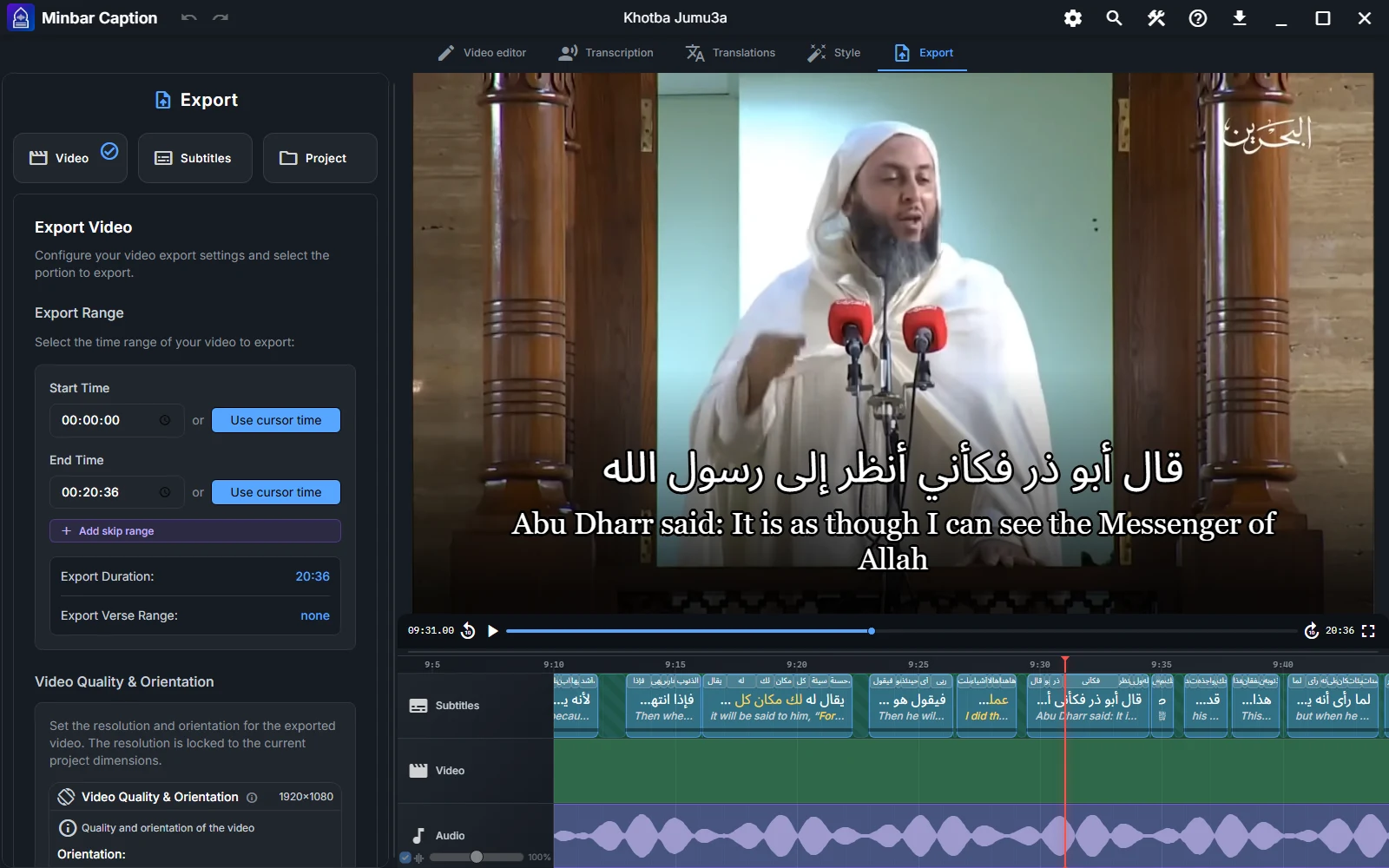
Video export
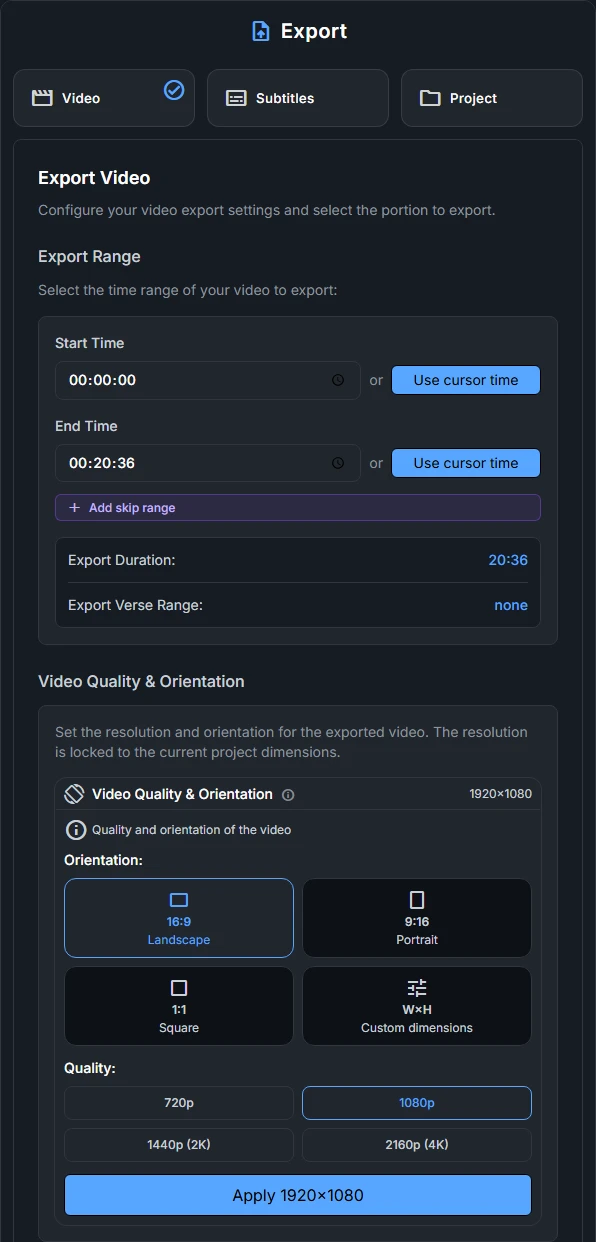
For the video export you can configure:
- Export range - render the full project or a chosen time range.
- Skip ranges — exclude parts of the timeline from the export.
- Orientation and quality — change the project’s video dimensions, shared with the Style editor. Apply the selected dimensions before exporting.
- Video & audio fade — smooth fade-in and fade-out.
- Performance — frame rate (5–60 FPS); advanced settings also control parallel capture workers and the quality profile.
The advanced settings let you add a random background when the video track is empty, export with transparency, choose H.264 or H.265 for a regular video, and select Balanced or Max Quality. For a transparent export, choose one of the offered alpha-capable formats instead of H.264/H.265.
Before starting, Minbar Caption warns you about low-confidence subtitles, missing words, or translations needing review. Resolve those issues, or explicitly acknowledge the warning to enable the export button. Set the output file name and folder before launching the export.
Subtitle export
Choose the subtitle format and content:
- Format — SRT or VTT.
- Content — include the transcript and the translations available for your subtitles.
- Arabic text format — Plain, QPC V1 (1405H), or QPC V2 (1423H).
YouTube chapters
For projects containing Quran references, chapter options can use the referenced surah or verse. Review the generated text before pasting it into your YouTube description.
Project data
Export the project as a JSON file (configuration only), or enable Include project assets to package it as a .qc file that bundles your
local media. The JSON export stores the timeline, subtitles, translations, styles, and media
references, but not the media files themselves. Use a .qc package to move a project to
another computer with its media.
Export monitor
Open the Exports Monitor from the download icon in the title bar to see the progress, status, and logs of each export. Use this monitor to check completion or investigate export errors.